


VS Code extensions
Install Codex or Claude Code, reuse the corresponding configuration, and get a first sidebar reply.
Follow the system-specific guide for the Codex extension or Claude Code extension.
Codex extension
Windows
1. Install
Download the Windows installer from VS Code, run it, follow the installation prompts, and open VS Code.
Press Ctrl + Shift + X to open Extensions, search for Codex – OpenAI's coding agent, confirm that OpenAI is the publisher, and select Install.
2. Configure
Follow the configuration section to enter and save your API Key, address, and model.
3. Use
Fully quit and reopen VS Code, then open your project with File → Open Folder. Open the Codex sidebar, start a chat, and send Reply only OK. Once you receive a reply, enter your task.
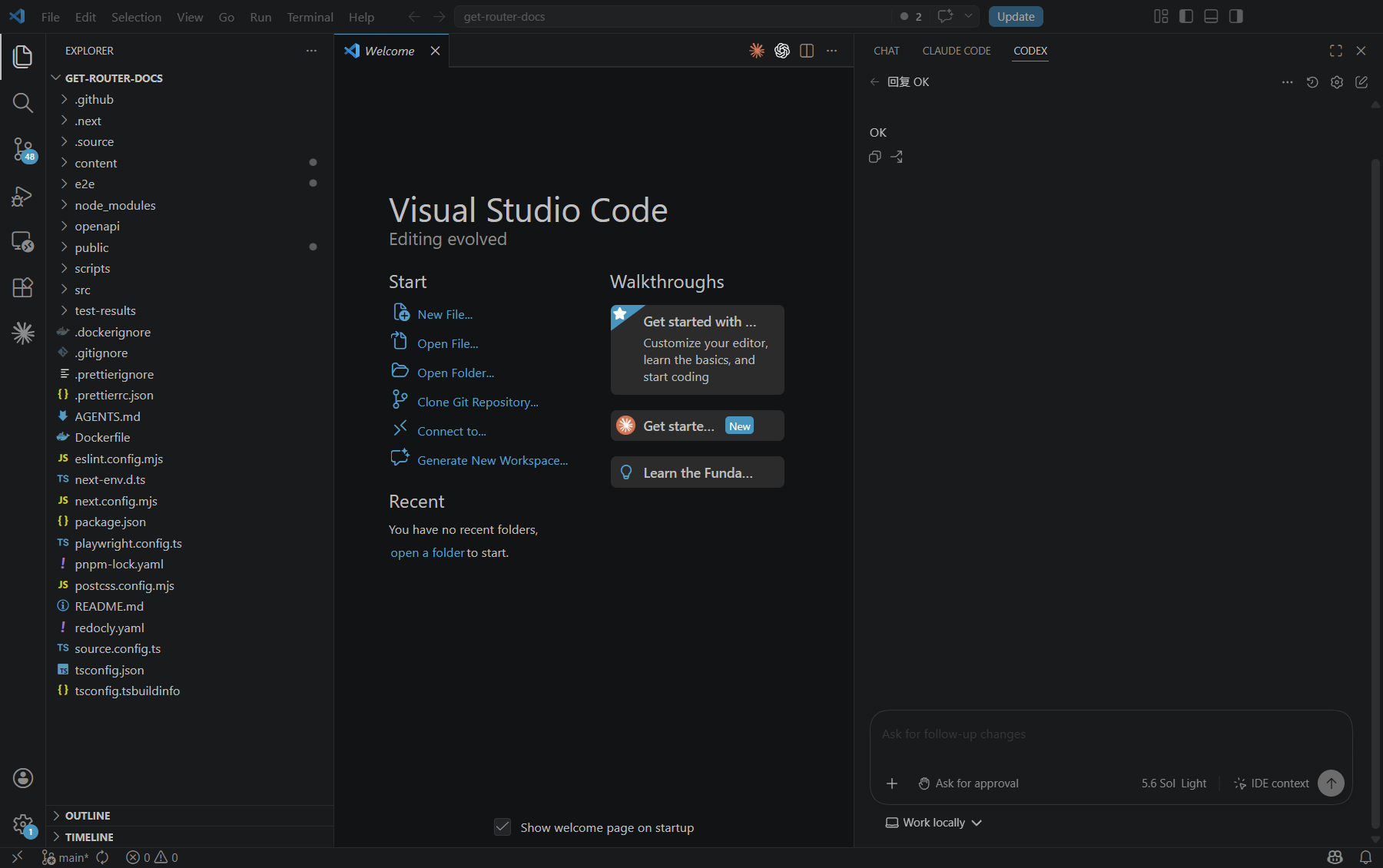
macOS
1. Install
Download the package for your Mac from VS Code, follow its installation steps to add it to Applications, and open VS Code.
Press Command + Shift + X to open Extensions, search for Codex – OpenAI's coding agent, confirm that OpenAI is the publisher, and select Install.
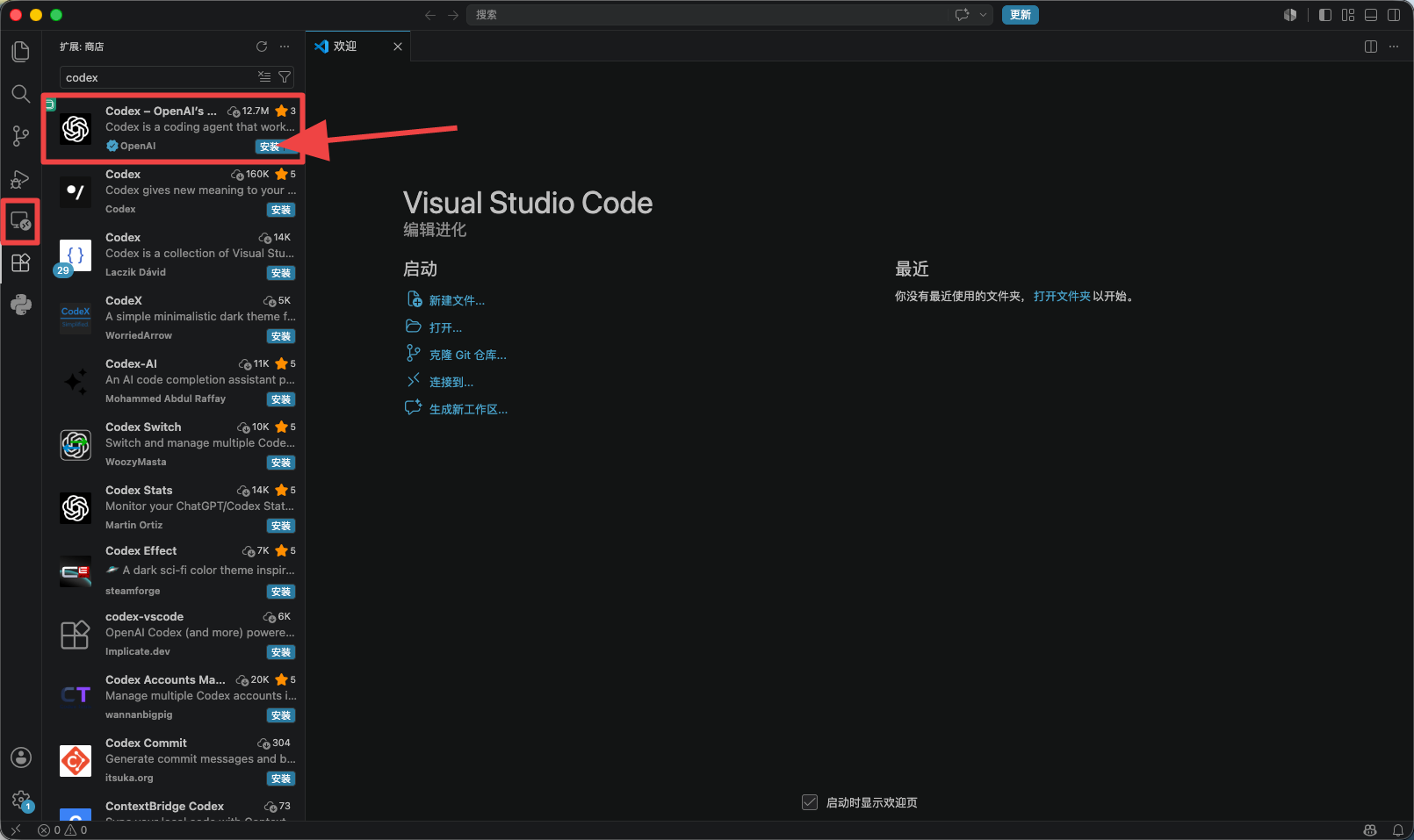
2. Configure
Follow the configuration section to enter and save your API Key, address, and model.
3. Use
Fully quit and reopen VS Code, then open your project with File → Open Folder. Open the Codex sidebar, start a chat, and send Reply only OK. Once you receive a reply, enter your task.
Claude Code extension
Windows
1. Install
Download the Windows installer from VS Code, run it, follow the installation prompts, and open VS Code.
Press Ctrl + Shift + X to open Extensions, search for Claude Code for VS Code, confirm that Anthropic is the publisher, and select Install.
2. Configure
Follow the configuration section to enter and save your API Key and address.
Search VS Code Settings for Claude Code: Disable Login Prompt and enable it for this custom API connection.
3. Use
Fully quit and reopen VS Code, then open your project with File → Open Folder. Open the Claude Code sidebar, start a chat, and send Reply only OK. Once you receive a reply, enter your task.
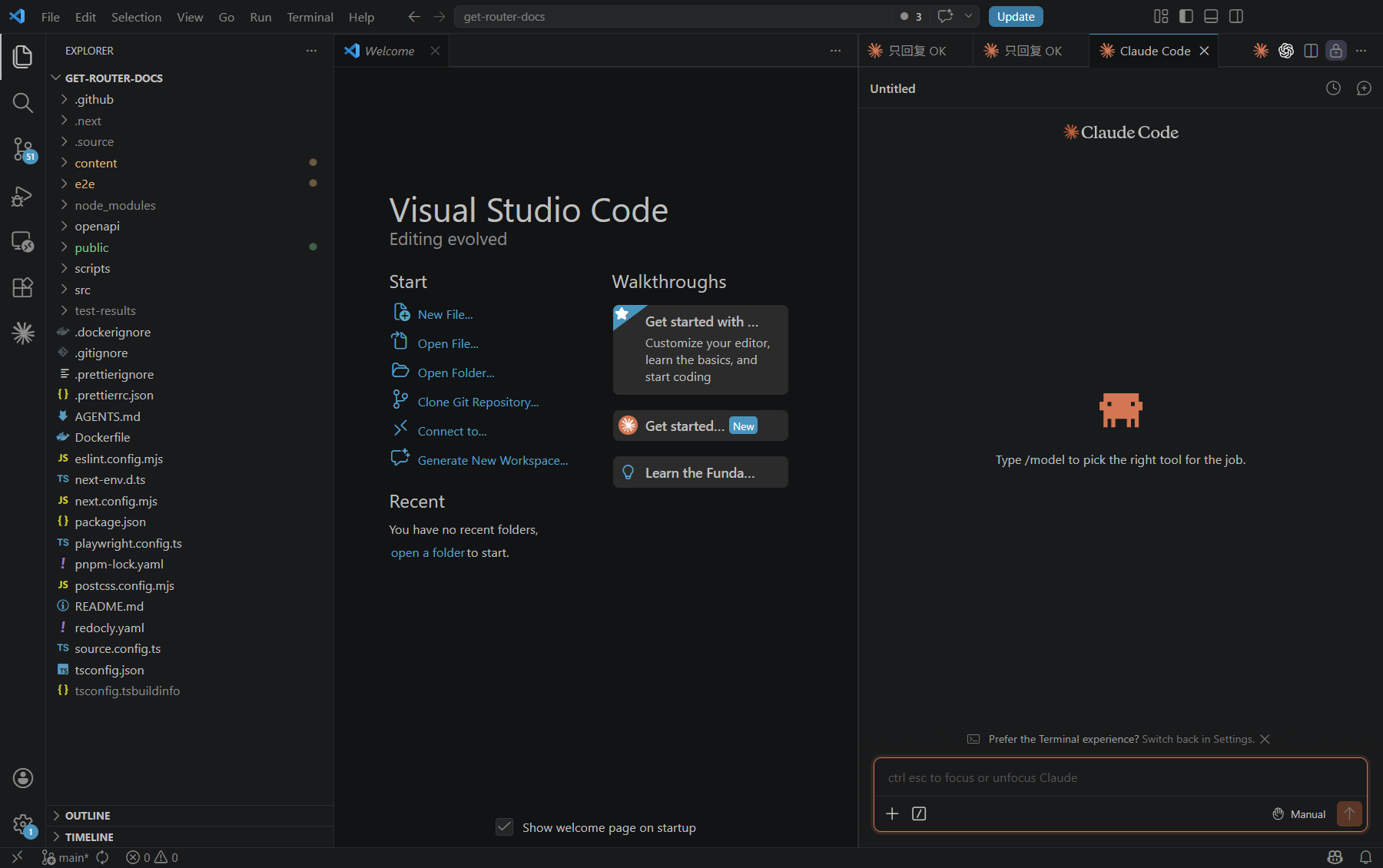
macOS
1. Install
Download the package for your Mac from VS Code, follow its installation steps to add it to Applications, and open VS Code.
Press Command + Shift + X to open Extensions, search for Claude Code for VS Code, confirm that Anthropic is the publisher, and select Install.
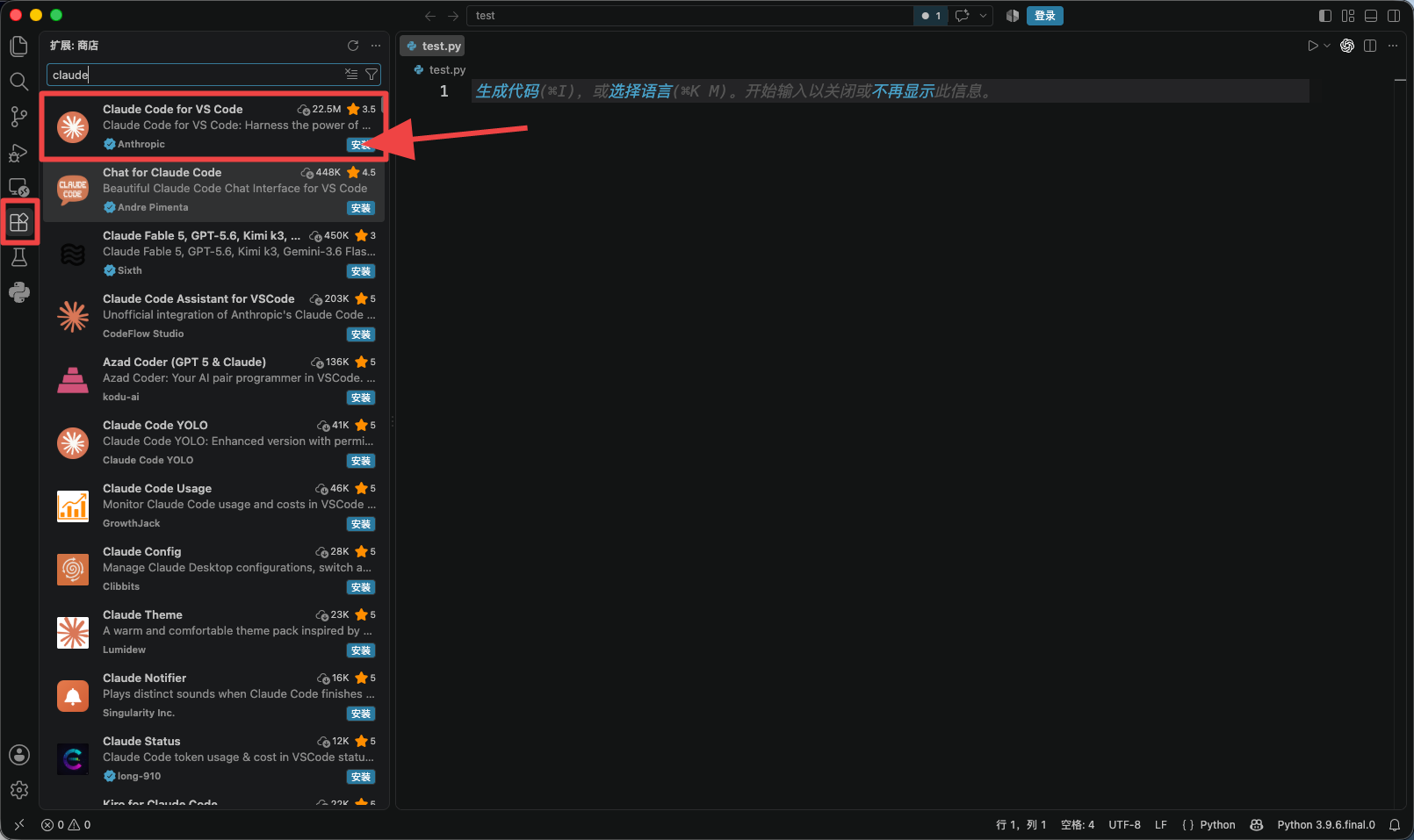
2. Configure
Follow the configuration section to enter and save your API Key and address.
Search VS Code Settings for Claude Code: Disable Login Prompt and enable it for this custom API connection.
3. Use
Fully quit and reopen VS Code, then open your project with File → Open Folder. Open the Claude Code sidebar, start a chat, and send Reply only OK. Once you receive a reply, enter your task.
Local and remote environments
With WSL, SSH, or containers, check where the extension actually runs. Local Windows, WSL, and remote environments may read different home directories. Save the configuration in the home directory of the environment running the extension, then restart the extension.
If a session is missing, see Codex session troubleshooting.