Use the GetRun Harness App
Install the App, connect your account, and use workspaces, models, sessions, automation, and plugins.
Follow the Windows or macOS steps for your system.
Windows
1. Install
Download the Windows installer from GetRun Harness, run it, follow the installation prompts, and open GetRun Harness.
2. Configure
Choose one method:
- Account sign-in: sign in to GetRun and select an API Key.
- Enter a Key manually: create a Key on the API Keys page, paste it into the App, and select Save and start.
After connecting, the App opens the home page.
3. Use
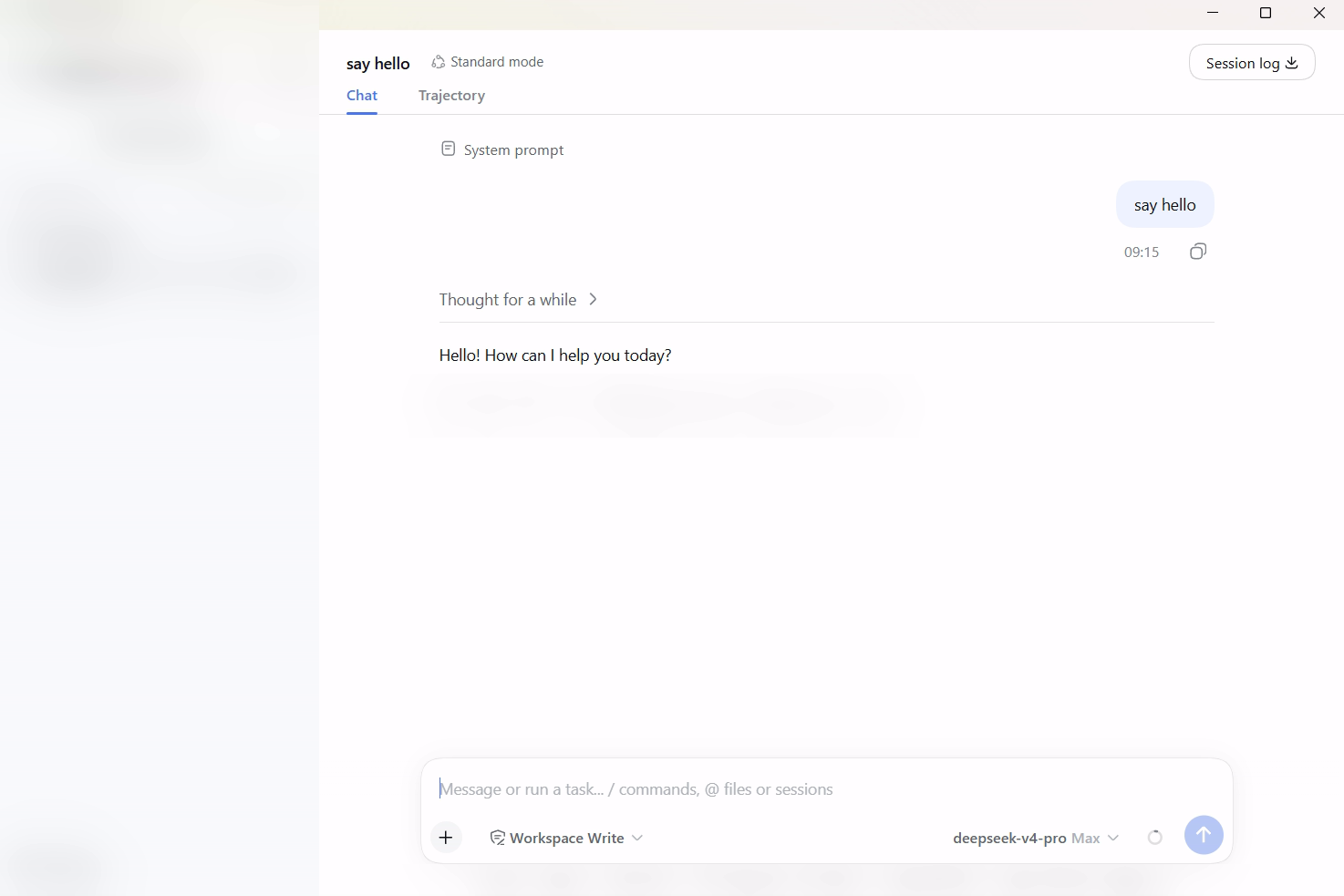
A workspace is the project directory the Agent can access. Session history is stored in its workspace.
- Add or select a directory in the workspace area.
- Select New Session.
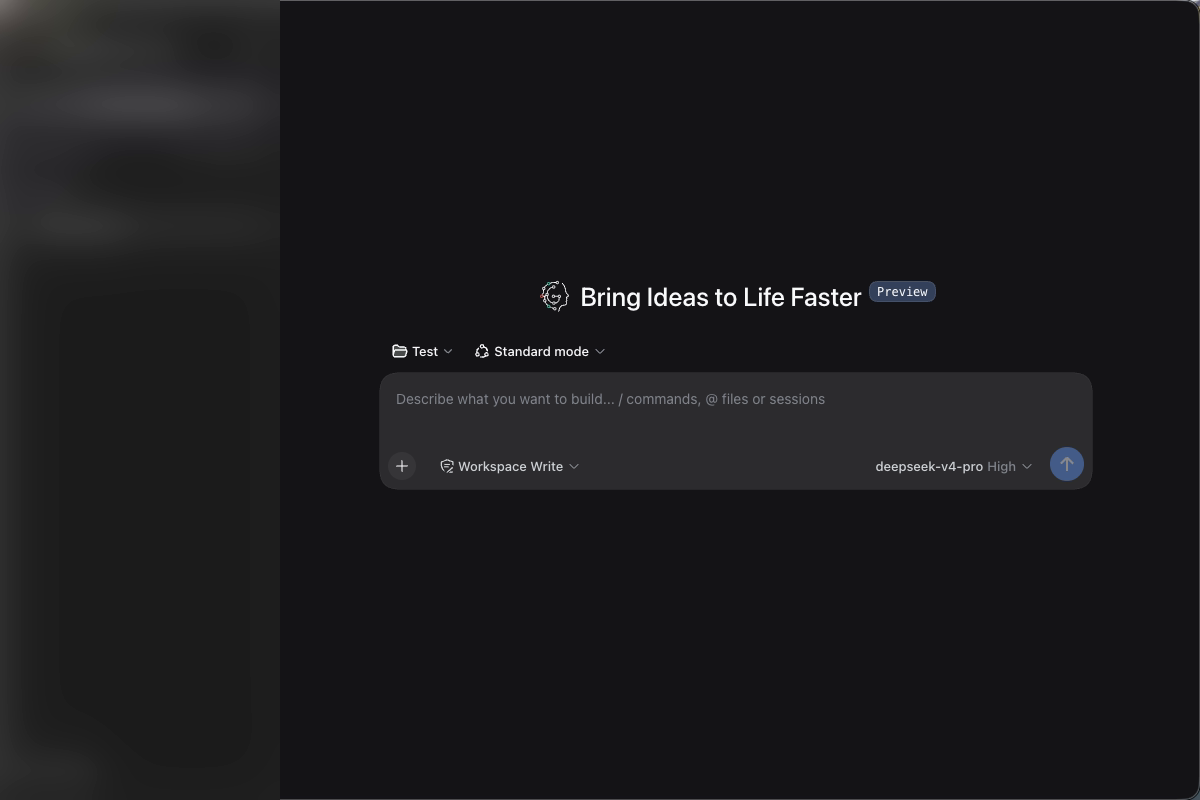
- Confirm the file permission scope and model below the message box.
- Describe the task and send it. You can inspect tool calls and results or stop a running task.
macOS
1. Install
Download the package for your Mac from GetRun Harness, follow its installation steps to add it to Applications, and open GetRun Harness.
Choose Apple silicon for an Apple chip or Intel for an Intel processor. Check About This Mac in the Apple menu.
2. Configure
Choose one method:
- Account sign-in: sign in to GetRun and select an API Key.
- Enter a Key manually: create a Key on the API Keys page, paste it into the App, and select Save and start.
After connecting, the App opens the home page.
3. Use
A workspace is the project directory the Agent can access. Session history is stored in its workspace.
- Add or select a directory in the workspace area.
- Select New Session.
- Confirm the file permission scope and model below the message box.
- Describe the task and send it. You can inspect tool calls and results or stop a running task.
Linux
Choose the DEB or RPM package for your distribution from GetRun downloads. After installing, sign in or enter an API Key, choose a workspace, and start a session.
Models and run modes
The model picker lists the GetRun models available to the current Key. If a model is unavailable in an older session, select another model.
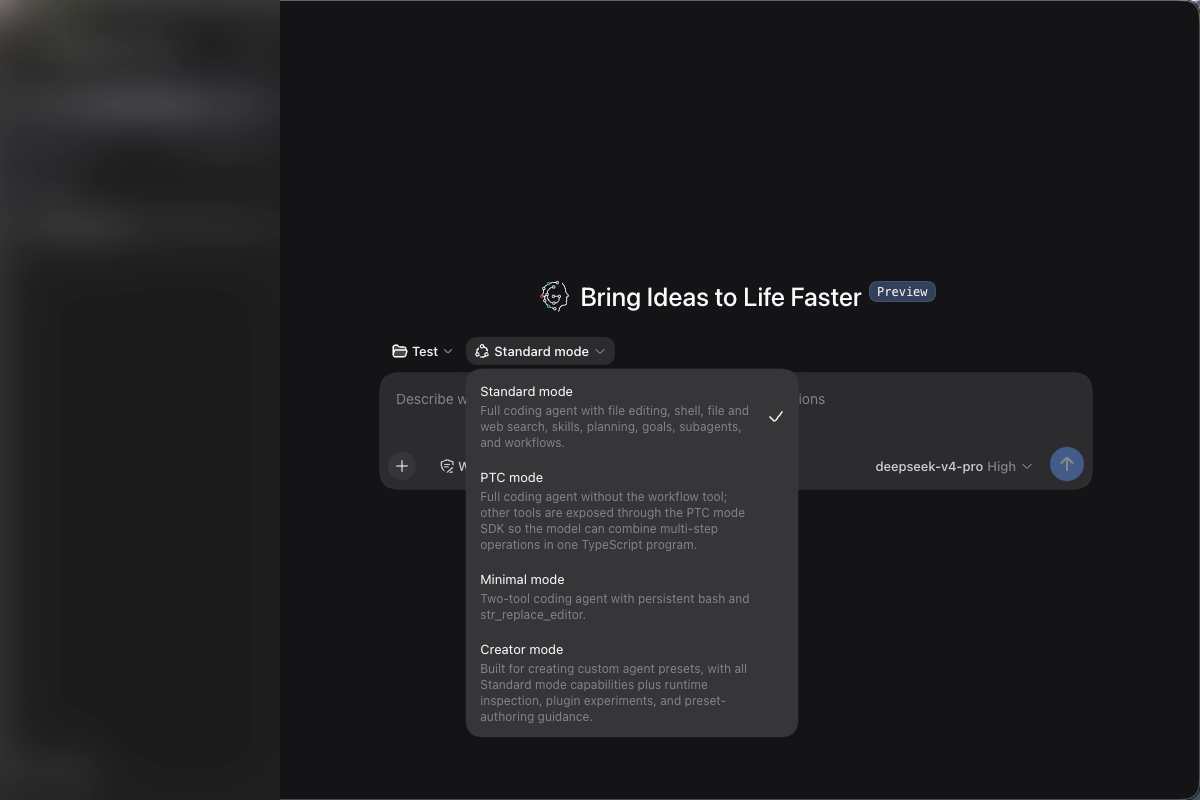
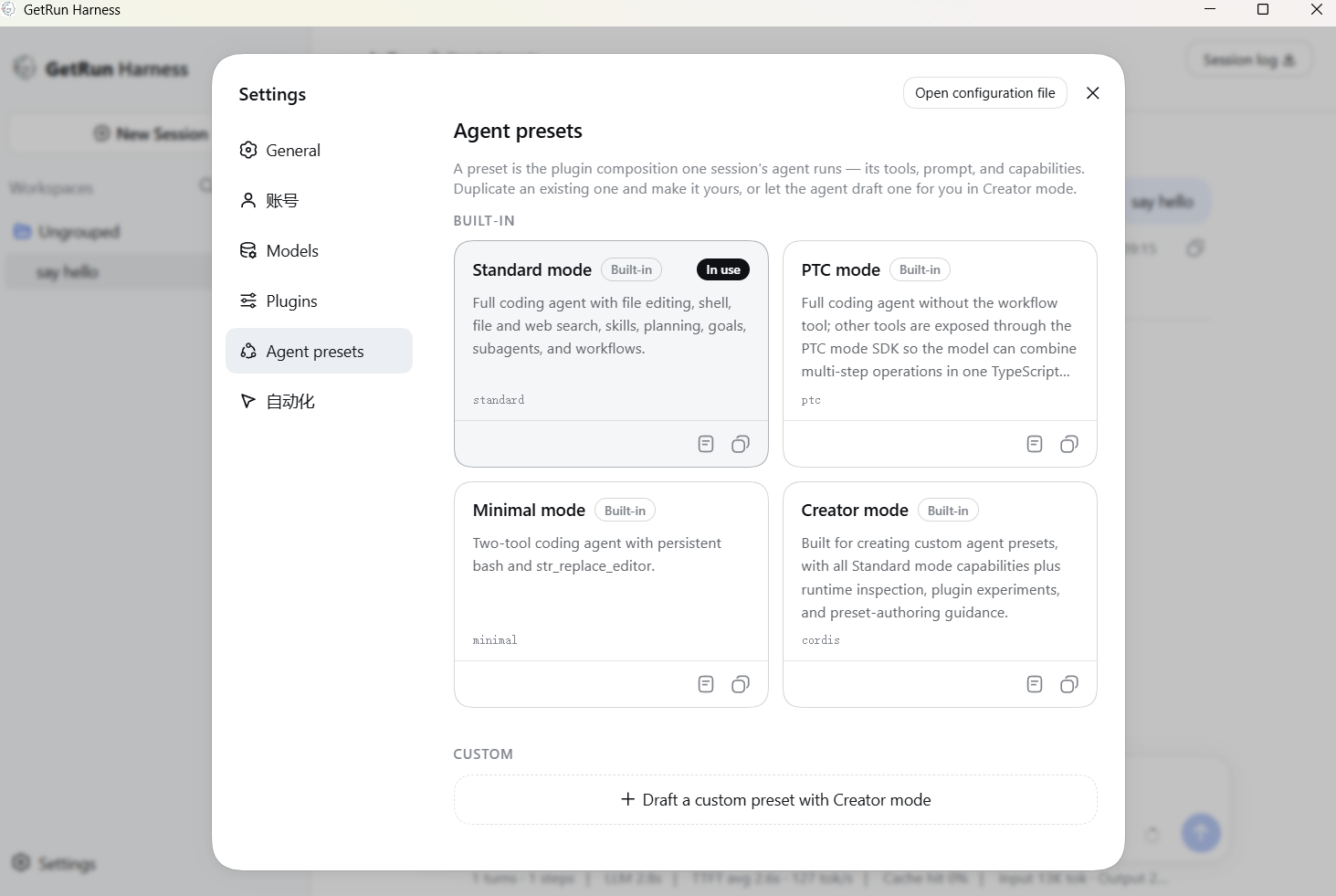
A run mode determines the tools available to the Agent. Check the run mode and workspace permissions before starting.
Automation
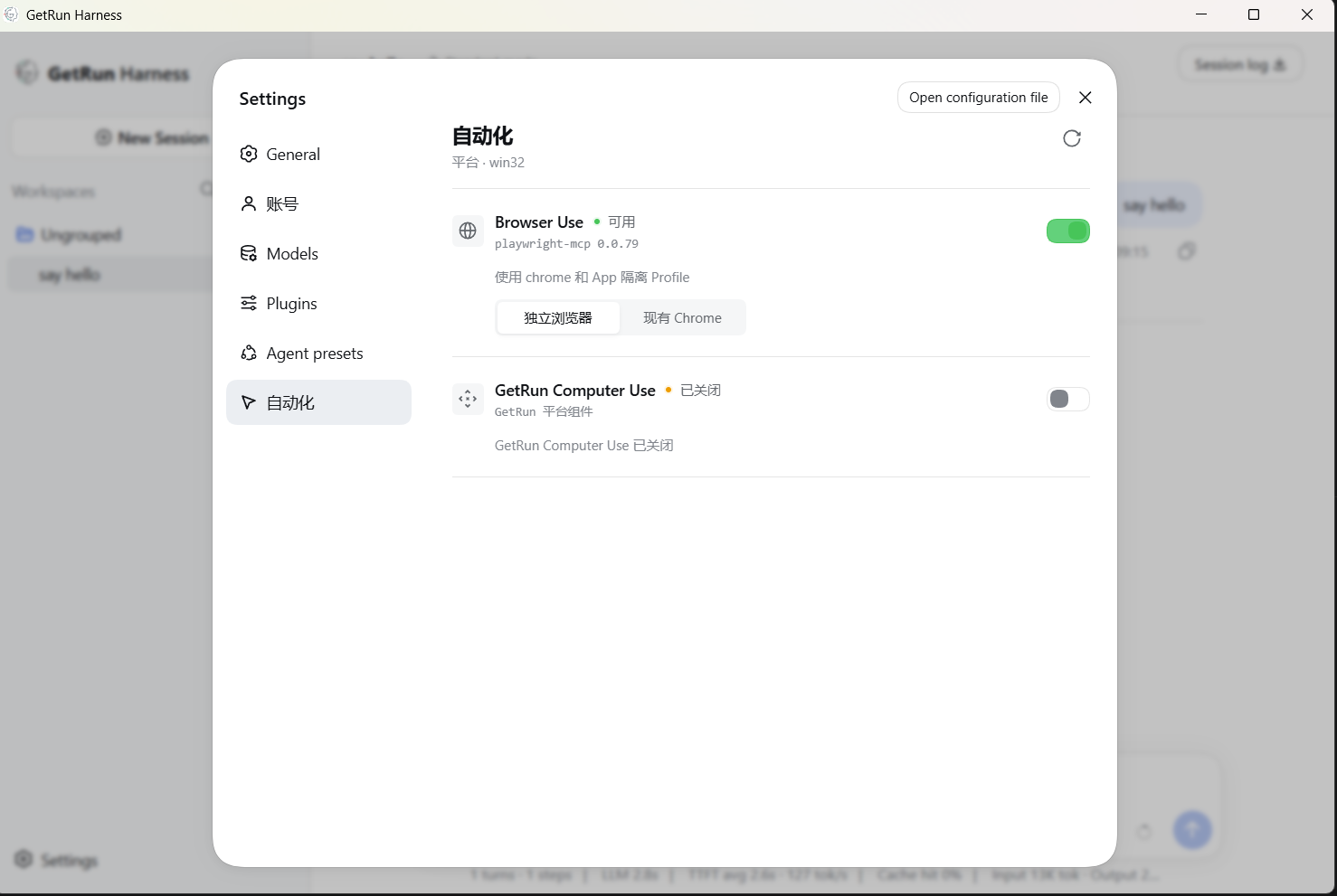
Enable Browser Use or Computer Use under Settings → Automation:
- Browser Use uses a separate browser environment by default. Enable the corresponding option to connect your current Chrome session.
- Computer Use requests permissions such as Accessibility and Screen Recording when required by the operating system.
- Follow the confirmation prompts for navigation, clicks, typing, file uploads, and application launches.
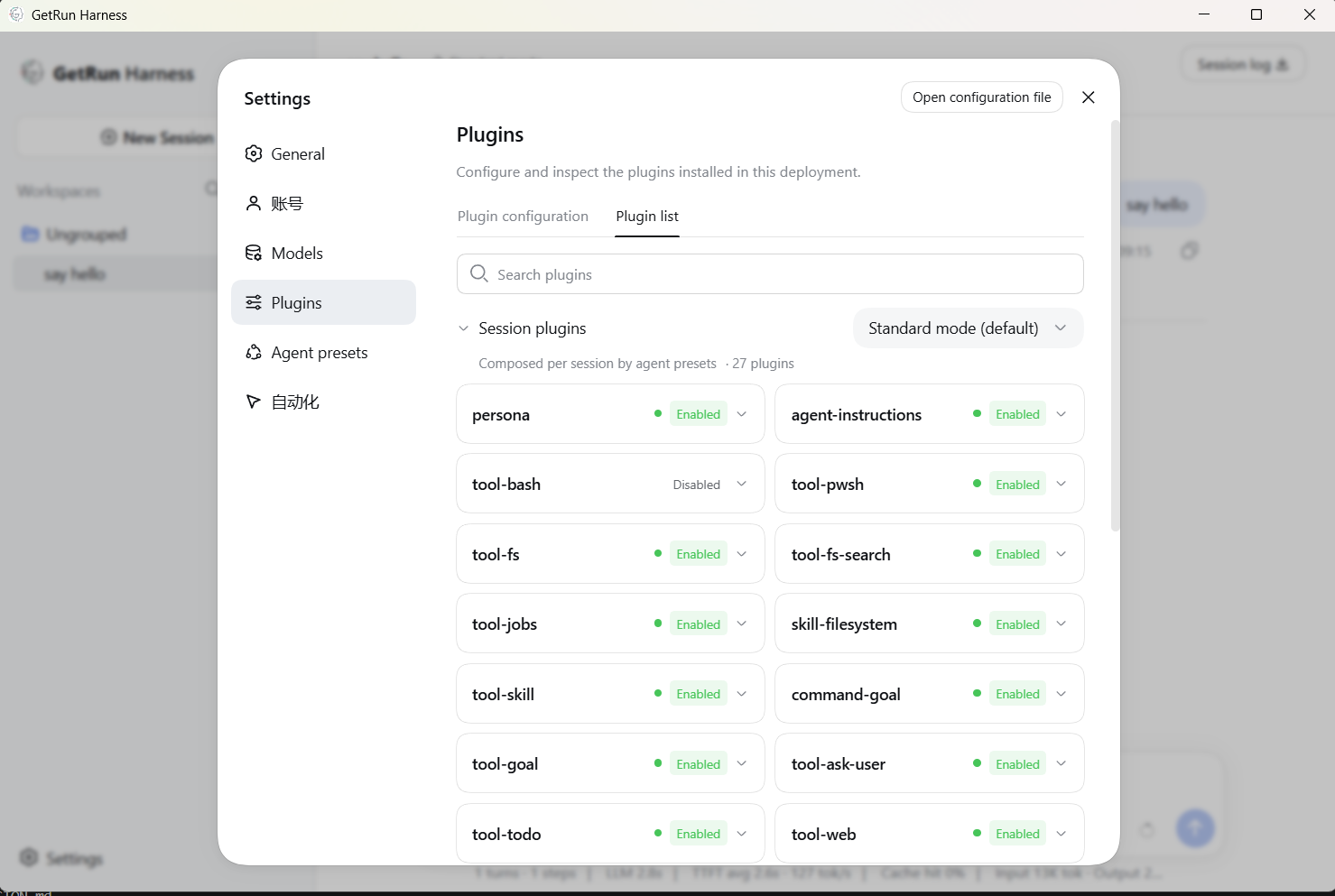
Plugin marketplace
- Open Plugin marketplace in App settings, or select Open in App on a GetRun plugin page.
- Search for a plugin and review its name, publisher, version, and source.
- Select Install and confirm.
- Manage or remove plugins under Installed.
- Restart the App when prompted.
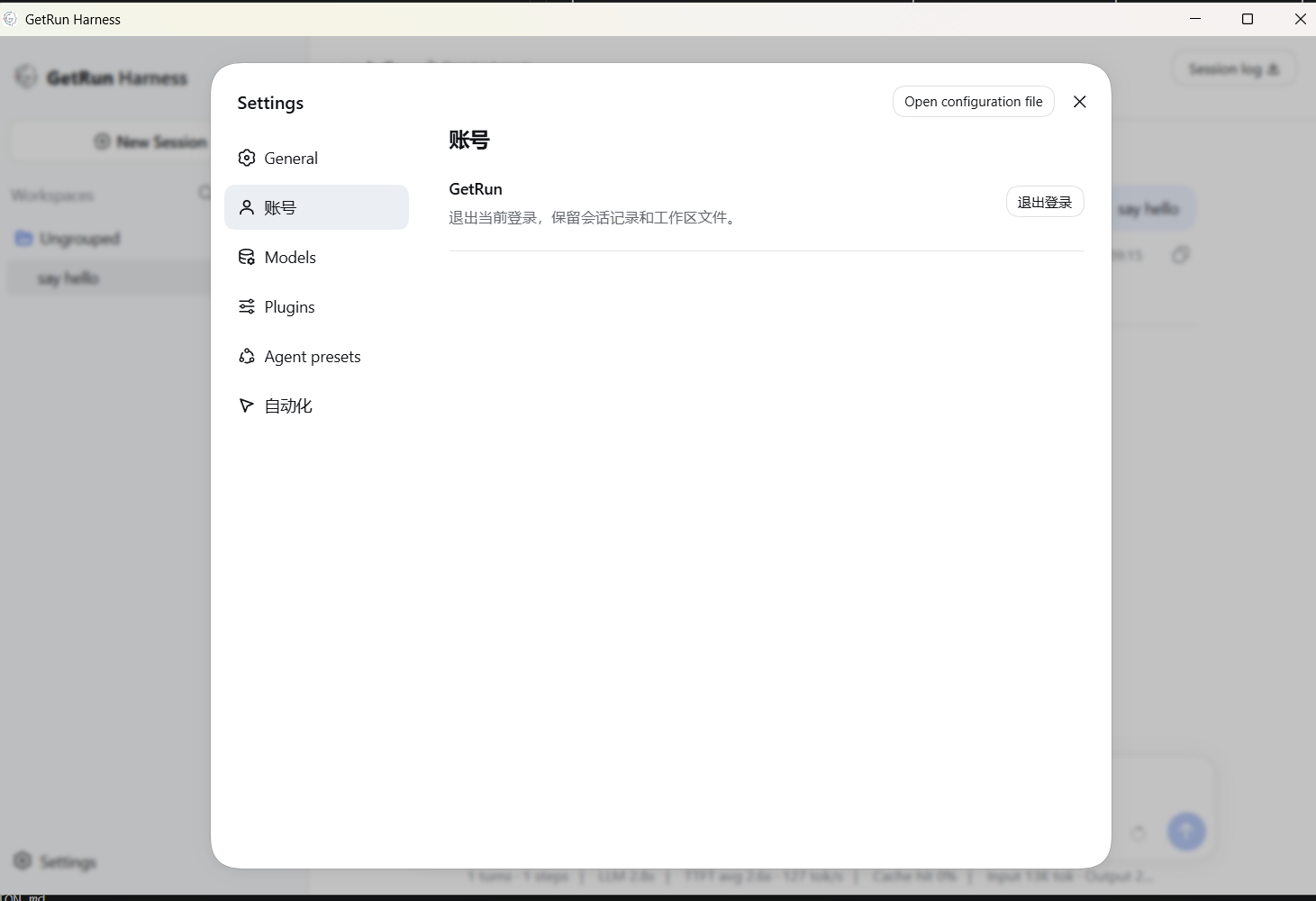
Sign out and local data
Select Sign out under Settings → Account and confirm. The App returns to sign-in; workspace files and session history remain.
Troubleshooting
| Symptom | Action |
|---|---|
| Invalid Key or no models | Enter the Key again and check model access and quota |
| App does not start | Fully quit the App and open it again |
| Saved session has no model | Select an available model in that session |
| Automation is unavailable | Check automation settings, permissions, and helper state |
| Plugin installation fails | Check the network and retry |
For other clients, see Using an API Key.